Posts Tagged ‘How-To’

Summary:   Microsoft Surface web site for the latest and past released software and firmware updates


Comments:

  • Microsoft’s Surface Update History (Software and Firmware) web site for Surface devices
  • Applies to the following Surface devices
    • Surface, Surface Pro
    • Surface 2, Surface Pro 2
    • Surface 3, Surface Pro 3
    • Surface Pro 4
    • Surface Book, Surface Book with Performance Base
    • Surface Studio
  • Direct links to obtain update history for the above Surface devices
  • Surface Updates are automatically installed via Windows Update
  • Note: Surface Updates files can also be downloaded and installed manually for most Surface devices
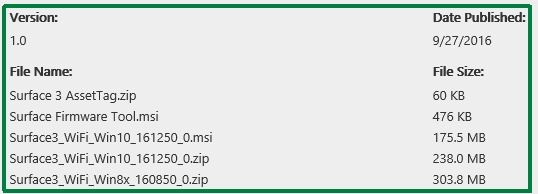
    • The file name format is the Surface version, followed by the operating system, followed by the release number.
    • To obtain, download and install Surface Updates manually follow the steps in this procedure

W10_Surface3_SoftFirm_01

Additional Information:


Revisions:

November 22, 2016: Initial Draft and Initial Publish Date

December 8, 2016: Revised Comment section; Added ‘Applies to’ comment

January 14, 2017:  Added example picture to better explain the multiple files available for download and installation.
Summary:   How to Run Windows Defender Offline


Comments:

  • Windows 10 Version 1607 includes a new feature(tool) for malware removal – ‘Windows Defender Offline’
  • Windows Defender Offline is integrated into Windows 10 Version 1607
  • Windows Defender Offline performs the scan prior to Windows startup (i.e. Offline)
  • Provides the ability to remove malware and viruses that may be difficult or not capable of being removed while Windows is running


How-To:

Note: Save all work and close all applications prior to proceeding to run Windows Defender Offline

  • Steps to run Windows Defender Offline
    • Click on each in sequence
      • Start Button
      • Settings
      • Update and Security
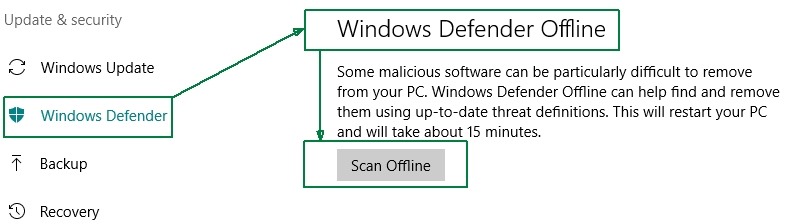
      • Windows Defender (then scroll down to ‘Windows Defender Offline’)
      • Scan Offline

W10_WDO_01

    • After clicking ‘Scan Online’ the Windows Defender Offline process will provide an alert that Windows will shutdown in about a minute.  Once the timeout occurs, Windows will Restart
    • After the required Restart, Windows Defender will briefly show a screen indicating the scan is about to begin
    • Once the scan begins the Windows Defender Offline graphical interface will appear with a progress bar
    • The scan typically takes about 15 minutes to complete
    • Once complete, if no malware is found, the system/device will reboot
      • If malware(an infection) is found, Windows Defender Offline will provide the ability to remove the malware/infection.
            • (Note: Windows Defender Offline, like all other Antivirus/Antimalware scanning software that runs resident and non-resident may not be able to remove all forms of malware)


Revisions:

August 3, 2016: Initial Draft Date

October 8, 2016: Initial Publish Date

March 15, 2017:  Updated ‘Comments’ and  itemized  ‘How-To’ steps in bullet form

Summary: 

  • Windows 10’s second major operating system update ‘Anniversary Update’ was released on Aug 2, 2016
  • Version Number and Build number as released – Version 1607  Build 14393.10

Comments:

  • Multiple Methods are available to obtain the Anniversary Update
      • Staged Rollout automatically via Windows Update(newer machines will receive the update first)
      • Manually ‘Check for Updates’ in Windows 10 Windows Update
              • Go to Settings > Updates & Security > Windows Update
              • The Anniversary Update will show up as ‘Feature Update’ with an option to update, download, and install
      • Clicking the ‘Learn More’ option/link in Windows Update
              • The ‘Learn More’ link once clicked will redirect to a Microsoft support site providing the option to download the Windows 10 Anniversary Update ISO file
      • Visit the Windows 10 Download web site/page  and click ‘Update Now’ (probably the most convenient method for end-users interested in obtaining Windows 10 Anniversary Update ASAP)

Additional Information:

  1. Windows 10 Anniversary Update Available August 2
  2. How to Get the Windows 10 Anniversary Update
  3. New Video Series This Week on Windows Highlights Windows 10 Anniversary Update
  4. Download Windows 10


Revisions:

August 2, 2016: Initial Draft and Initial Publish Date

August 19, 2016:  Updated Comment Section with link to obtain Anniversary Update via Windows 10 Download web site/page (compliments of Ed Bott’s Aug. 16, 2017 article)

Summary:  Microsoft Rolls-Out Windows 10 Update History site to the public

Comments:

  • Microsoft now provides a web site for Windows 10 Update History
  • The web site acts as a hub for the Release Notes that accompany each update
  • The web site will provide information on updates in a list format(chronological descending order)
  • The web site history includes the Windows 10 Version, KB number and Build number assigned to the update.
                • e.g May 2016 Update ==> Windows 10 Version 1511, KB3156421, 10586.318
  • Each line item in the list has a clickable link to its respective ‘Help article’ providing additional information
  • Each Help article also has a separate link to the respective update’s KB article. 
  • The Linked KB article in addition to details also contains a File Information section which provides a link to download a csv file containing a list of the updated files(File name, File version, File size, Date, Platform).  [Note: The csv file can be opened and viewed in Excel(recommended) or a standard Text editor]

How To:

Revisions:

February 14, 2016: Initial Draft Date

March 15, 2016: Final Draft Date – Updated Comment section noting web site provides chronological update history

June 6, 2016:  Initial Publish Date

July 1, 2016: Updated comment section to include information on KB article and File Information availability

July 2, 2016: Rearranged bullet-ized items in the Comments section and corrected typographical errors

Summary:   Windows 10 Media Creation Tool(MCT) for creating installation media(USB/DVD/ISO) now includes the latest February 2016 bits

Comments:

  • Microsoft updated the Windows 10 Media Creation Tool for Windows 10 Version 1511 with the latest available ‘Build’ bits(February 2016)
  • Previous bits were November 2015 – Windows 10 1511 RTM Build 10.10586.0
  • February bits – Windows 10 Version 1511 – Build 10.10586.122
  • Media Creation Tool link
  • The downloadable Media Creation Tool filename is MediaCreationTool.exe
    • To create USB media – Run the executable file and when prompted choose the USB option
    • To create DVD media – Run the executable file and when prompted choose the ISO option and burn the ISO file to DVD with your preferred software (Note: Windows 10 has a built-in support to create the DVD from the ISO file)
    • Optionally, if desired, the ISO file can also be mounted
  • The created installation media(or mounted ISO file)  can be used to upgrade from Windows 10 Version 1507 or Windows 10 1511(pre-February bits) and also clean install Windows 10 Version 1511.

Revisions:

February 29, 2016:  Initial Draft and Publish Date

March 2, 2016:  Added comment for ISO file mounting

March 15, 2016:  Added comment for include Media Creation Tool filename

March 16, 2016: Rearranged comments for flow

Summary: 

  • How to use the Microsoft DISM Tool to Check, Scan and Restore Windows 10 System Image Health


Comments:

  • DISM(Deployment Image Servicing and Management [DISM.exe]) is a command-line tool that can be used to determine the status[Health] of the Windows operating System Image’s Component Store.  The tool can also be used to Repair a Windows System Image
  • DISM’s command-line tool is run in an elevated command prompt
  • DISM is also available via PowerShell.  (Note: This article will not cover using DISM’ with PowerShell)
  • This article covers three(3) of the command line switches available for use with the DISM command
    • /CheckHealth  – Scans and reports if the System Image is healthy, corrupted, repairable, or non-repairable
        • Informative Only, Doesn’t Fix, Repair or Change
    • /ScanHealth – Scans and reports if corruption exists
        • Informative, Doesn’t Fix, Repair or Change (This scan will take several minutes and will provide a progress bar showing % progress – Do not interrupt)
    • /RestoreHealth – scan the Windows Image for component store corruption and automatically perform repairs
  • Use the DISM tool to determine the health of the Windows System Image if the built-in Windows System File Checker can not repair Windows file corruption.
  • If the DISM tool’s CheckHealth and ScanHealth options report the image (a) corruption **and** (b) is repairable, then use the DISM tools /Restore Health option.


How To: 

  • Using DISM’s /CheckHealth or /ScanHealth  option
  1. Open an Elevated Command Prompt => Press Windows key + X ] then select the ‘Command Prompt (Admin) option
  2. At the command line prompt enter one of the following
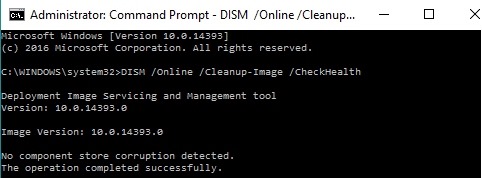
              • DISM /Online /Cleanup-Image /CheckHealth
              • DISM /Online /Cleanup-Image /ScanHealth
        • Note: A healthy system, i.e. no component store corruption will report findings as shown in the two pictures shown below

W10_DISM-CH_01

 W10_DISM-SH_01

  • Using DISM’s Restore Health option (Note: Always perform a /CheckHealth and /ScanHealth prior to attempting a repair of the Windows System Image and ensure that the /CheckHealth option reports the image as repairable)
              • DISM /Online /Cleanup-Image /RestoreHealth


Additional Information:


Revisions:

January 6, 2016: Initial Draft and Publish Date

May 8th, 2016:  Updated and revised Comments section description of the command line switches

August 15, 2016:  Replaced example pictures for better view-ability

September 9, 2016: Added reference to using DISM for Windows Update errors caused by component corruption

Windows 10 Media Creation Tool

Posted: October 30, 2015 in Windows 10
Tags: , ,

Summary:   Microsoft tool to create Windows 10 installation media (DVD or USB) or ISO file

Comments: 

  • The Microsoft Media Creation Tool is free downloadable software(*.exe file) that can be run and used by end-users to:
        • Create Windows 10 installation media on a DVD disc, USB Thumb Drive or an ISO file for mounting
        • Upgrade the PC to Windows 10
  • Where to obtain – https://www.microsoft.com/en-us/software-download/windows10
        • Click on the above link to load the Microsoft web site and the option to download the Media Creation Tool
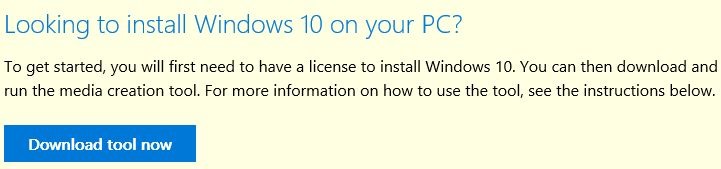
        • Scroll down and click on the box ‘Download tool now’(see below)

W10_MCT_01

        • Save the *.exe file (MediaCreationTool.exe) to your local storage(hard drive, usb thumb drive)
        • Run the exe file to create Windows 10 installation media or upgrade to Windows 10


Additional Information:


  • Also, another good resource on clean installing Windows 10 can be found in Microsoft MVP(Greg Carmack) WIKI


Revisions:

October 29, 2015: Initial Draft and Publish Date

October 31, 2015: Added Additional Information section and links