Summary:  Microsoft Introduces Tools and Support for 3D on Windows 10 Creators Update

Comments:

  • On October 29, 2016 Microsoft unveiled their vision to bring 3D to Windows 10 users
  • 3D will be available in the next major version release of Windows – Creators Update(due in 2017)
  • 3D tools included in the Creators Update will make it easier to capture, create and share in 3D
  • Creators Update includes Paint 3D which Microsoft refers to as ‘your 3D art studio in Windows’
  • An online community, Remix 3D, is available now, for the purpose of networking and connecting creators and creations – https://www.remix3d.com
  • To experience 3D, today, it is necessary to be a member of the Windows Insider Program and have a current 3D supported Insider Program version/build installed on your device


Additional Information:


Revisions:

November 9, 2016: Initial Draft and Initial Publish Date
Summary:   How to Run Windows Defender Offline


Comments:

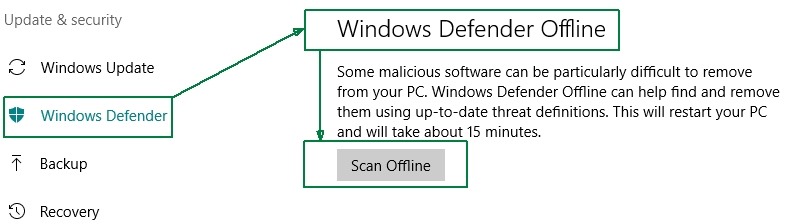
  • Windows 10 Version 1607 includes a new feature(tool) for malware removal – ‘Windows Defender Offline’
  • Windows Defender Offline is integrated into Windows 10 Version 1607
  • Windows Defender Offline performs the scan prior to Windows startup (i.e. Offline)
  • Provides the ability to remove malware and viruses that may be difficult or not capable of being removed while Windows is running


How-To:

Note: Save all work and close all applications prior to proceeding to run Windows Defender Offline

  • Steps to run Windows Defender Offline
    • Click on each in sequence
      • Start Button
      • Settings
      • Update and Security
      • Windows Defender (then scroll down to ‘Windows Defender Offline’)
      • Scan Offline

W10_WDO_01

    • After clicking ‘Scan Online’ the Windows Defender Offline process will provide an alert that Windows will shutdown in about a minute.  Once the timeout occurs, Windows will Restart
    • After the required Restart, Windows Defender will briefly show a screen indicating the scan is about to begin
    • Once the scan begins the Windows Defender Offline graphical interface will appear with a progress bar
    • The scan typically takes about 15 minutes to complete
    • Once complete, if no malware is found, the system/device will reboot
      • If malware(an infection) is found, Windows Defender Offline will provide the ability to remove the malware/infection.
            • (Note: Windows Defender Offline, like all other Antivirus/Antimalware scanning software that runs resident and non-resident may not be able to remove all forms of malware)


Revisions:

August 3, 2016: Initial Draft Date

October 8, 2016: Initial Publish Date

March 15, 2017:  Updated ‘Comments’ and  itemized  ‘How-To’ steps in bullet form

Summary:  Windows 10’s Windows Update applicability to the ‘Windows as a Service’ process


Comments:

  • Since July 2015 there have been three major Windows 10 versions released
    • Version 1507(Initial release, July 2015, aka 10.0 version), Build 10240.x
    • Version 1511 (November 2015) Build 10586.x
    • Version 1607 (July 2016, Anniversary Update) Build 14393.x
  • MSFT follows the N+2 model for servicing Windows versions for security and o/s system updates – i.e. only the two most current versions declared as Current Branch For Business(CBB) are supported
    • The last update(security and o/s) for Windows 10 Version 1507 will be March 2017
    • At the end of March 2017 only Windows 10 versions 1511 and 1607 will be serviced and supported.  Eventually, the next version of Windows(Creators Update) will be declared CBB and sometime after that declaration Windows 10 Version 1511 will be given an end-of-support date for servicing and support with Windows updates.
    • This ‘N+2’ model explains a piece of the Windows 10 ‘Windows-as-a-Service’ model with respect to the version of Windows 10 installed on a given device
      • ‘Supported’ does not necessarily mean the useful life of the device.   ‘Supported’ from a service standpoint is the support cycle for a version of Windows 10 on a device for the supported lifetime of the device – i.e. the device must be capable(assuming the hardware can handle it) of upgrading to a version within the confines of the N+2 model.     
        • e.g. Windows 10 will still work on a device with Windows 10’s initial version 1507 installed(released July 2015), but in the case of 1507 no updates will be available after March 2017. And in time, Windows 10 second major release 1511 will follow the same pattern(end of support) in the future after the next Win10 major version(The Creators Update) is released next spring.
    • Windows 10 1507 was the version released and available under the terms of the  free-Windows 10 upgrade offer which just recently ended on July 29, 2016.
      • The ‘free-upgrade’ offer from a support standpoint was often misrepresented and misunderstood with many falsely referring or stating support for Windows 10 1507 as  being applicable to the the ‘life of the device on which the free Windows 10’ was installed.   The free-upgrade offer version(1507) still falls under the N+2 servicing model – no upgrades for the version after March 2017.
            • Thus,  to retain the privilege of being supported a device with the Windows 10 1507 free-upgrade version(as well as purchased or OEM installed devices with Windows 10 1507) is required to upgrade to a version of Windows 10 within the confines of the ‘N+2’ servicing model – thus after March 2017, only Windows 10 1511 and 1607 will be the supported operating systems, and likewise, as noted above, once the next version is released(Creator’s Update) Windows 10 1511 will eventually fall off the ‘Windows-as-a-Service’ support lifecycle.


Additional Information:

As we described in the Windows as a service docs at http://aka.ms/waas, we service and support two CBB releases at all times, so the end of servicing for a particular release is dependent on the timing of the N+2 release. It will be at least 18 months, but can be longer when releases are more than six months apart.

Because there are two newer CBB releases, Windows 10 1507 will not be serviced much longer – as I mentioned in a previous reply, the 60-day countdown (the grace period described in the Windows as a service docs) will start in January, meaning the last updates for Windows 10 1507 will be in March.

For Windows 10 1511, the end of servicing will be about six months after the CBB declaration for the next Windows 10 feature update (the Creators Update, due out early next year). So Windows 10 1511 will be serviced at least through the middle of 2017, possibly longer depending on the actual release date of the next feature update.


Revisions:

September 2, 2016: Initial Draft

September 7, 2016: Initial Publish Date

December 1, 2016: Revised article to better reflect Microsoft’s N+2 model servicing of Windows Updates; Added Additional Information section and link

December 8,  2016:  Revised content; added new content, multiple line items, and improved explanation regarding the March 2017 end-of-support date for Windows 10 Version 1507(per Microsoft’s Michael Niehaus’ TechNet Blog comments) 

Summary: 

  • Windows 10’s second major operating system update ‘Anniversary Update’ was released on Aug 2, 2016
  • Version Number and Build number as released – Version 1607  Build 14393.10

Comments:

  • Multiple Methods are available to obtain the Anniversary Update
      • Staged Rollout automatically via Windows Update(newer machines will receive the update first)
      • Manually ‘Check for Updates’ in Windows 10 Windows Update
              • Go to Settings > Updates & Security > Windows Update
              • The Anniversary Update will show up as ‘Feature Update’ with an option to update, download, and install
      • Clicking the ‘Learn More’ option/link in Windows Update
              • The ‘Learn More’ link once clicked will redirect to a Microsoft support site providing the option to download the Windows 10 Anniversary Update ISO file
      • Visit the Windows 10 Download web site/page  and click ‘Update Now’ (probably the most convenient method for end-users interested in obtaining Windows 10 Anniversary Update ASAP)

Additional Information:

  1. Windows 10 Anniversary Update Available August 2
  2. How to Get the Windows 10 Anniversary Update
  3. New Video Series This Week on Windows Highlights Windows 10 Anniversary Update
  4. Download Windows 10


Revisions:

August 2, 2016: Initial Draft and Initial Publish Date
August 19, 2016:  Updated Comment Section with link to obtain Anniversary Update via Windows 10 Download web site/page (compliments of Ed Bott’s Aug. 16, 2017 article)

Summary:  Windows Essentials 2012 Download Full Version Installer – Possibly Last Chance before being removed from the Microsoft Server

Note:  This Blog entry is now obsolete – Windows Essentials 2012 installer files are no longer available from Microsoft. 

For additional and later information see this ===>> Blog article


Comments:

  • Windows Essentials 2012 includes Windows Live Mail 2012, Photo Gallery/Movie Maker, and Windows Live Writer 2012
  • Ever since Windows 8.0 was released the possibility of the Windows Essentials 2012 suite of products no longer being available and/or not supported has been a valid concern.
  • Windows Live Essentials 2011 and 2009 Full and unified web version installers are no longer available from Microsoft web site and servers.  Windows Live Essentials 2011 and 2009 are no longer supported products.
  • Windows Essentials 2012 Full version installer remains available on the Microsoft server (How long = unknown)
  • If using one of more of the Widows Essentials 2012 suite of products, it is highly recommended to download the Full version installer for archive purposes in the event a reinstallation is necessary, clean installation on a new or different pc, and/or backup requirements.
  • It is safe to assume that Windows Essentials 2012 will not be supported in the future.  End of support does not always mean, no longer capable of being used but it does usually mean end of availability to obtain its installer files.


How to:

Note:  The Direct download link above is for the English language installer. For a different country specific version please replace the ‘en’  in the above link with the local language code.

Revisions:

July 1, 2016: Initial Draft and Publish Date

March 26, 2017:  Added Note on article obsolescence and link with further explanation

Summary:  Microsoft Rolls-Out Windows 10 Update History site to the public

Comments:

  • Microsoft now provides a web site for Windows 10 Update History
  • The web site acts as a hub for the Release Notes that accompany each update
  • The web site will provide information on updates in a list format(chronological descending order)
  • The web site history includes the Windows 10 Version, KB number and Build number assigned to the update.
                • e.g May 2016 Update ==> Windows 10 Version 1511, KB3156421, 10586.318
  • Each line item in the list has a clickable link to its respective ‘Help article’ providing additional information
  • Each Help article also has a separate link to the respective update’s KB article. 
  • The Linked KB article in addition to details also contains a File Information section which provides a link to download a csv file containing a list of the updated files(File name, File version, File size, Date, Platform).  [Note: The csv file can be opened and viewed in Excel(recommended) or a standard Text editor]

How To:

Revisions:

February 14, 2016: Initial Draft Date

March 15, 2016: Final Draft Date – Updated Comment section noting web site provides chronological update history

June 6, 2016:  Initial Publish Date

July 1, 2016: Updated comment section to include information on KB article and File Information availability

July 2, 2016: Rearranged bullet-ized items in the Comments section and corrected typographical errors