

Summary:
The Skype for modern Windows App(Windows 8 and later) will be replaced by Skype for Windows Desktop
Information:
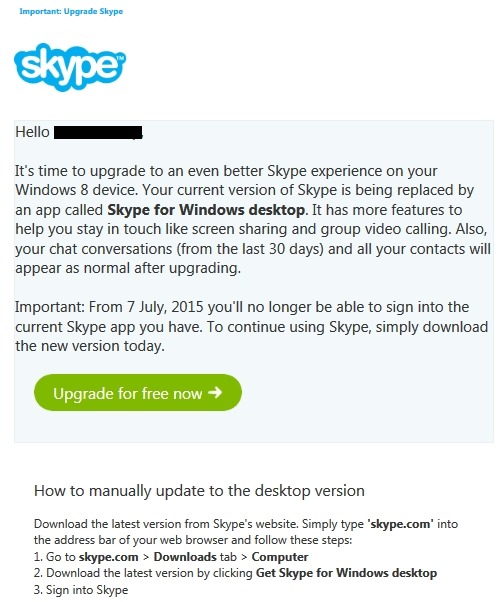
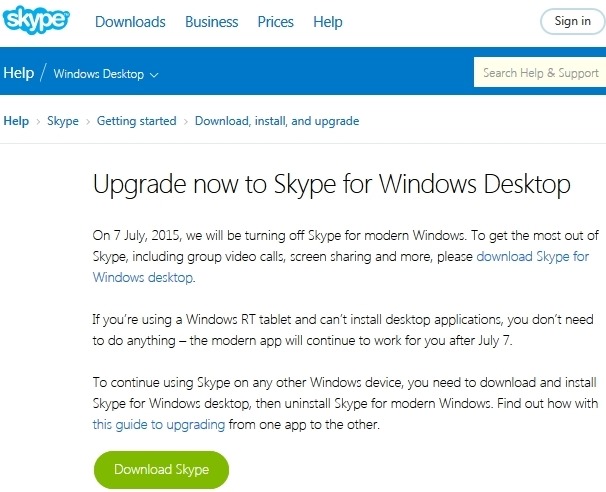
1. On July 7, 2015 Microsoft will turn off Skype for modern Windows
2. To continue using Skype on Windows 8 and later Windows operating systems it will be necessary to use ‘Skype for Windows Desktop’
Comments:
- Skype for modern Windows is the app included with Windows 8 and 8.1 operating systems.
- Skype for Windows Desktop is a stand-alone downloadable and installable program
- In the past Windows 8.0 and 8.1 allowed both versions (Modern app and Desktop program) to co-exist thus this change effective July 7, 2015 eliminates that possibility and makes Skype for Windows Desktop the sole Skype application for use on Windows 8 and 8.1 (and most likely Windows 10).
- Skype for Windows Desktop can be downloaded here => Skype for Windows Desktop
- Skype for modern Windows (the included Windows operating system App) should be uninstalled before installing Skype for Windows Desktop
Notes:
- If Skype for Windows Desktop is already installed, it may only be necessary to remove/uninstall the Skype modern Windows app and update Skype (manually using the latest downloadable installer file or updating via the Skype Desktop program ‘Update’ option)
- When updating Skype for Windows Desktop it may also be preferable to download and use the Skype for Windows Desktop manual installer since the Skype program’s built-in updater has been known (and proven) to lag version(s) behind the latest available download version
- Do pay attention (when upgrading/installing Skype) to the screen prompts for optional services. Ensure you accept or uncheck any supplemental plug-ins or other offerings (e.g. Skype Click to Call; Making Bing the default browser Search engine, etc.)
Official Notifications:
Two separate notices are available – email and web article. Both notices are shown below
How To:
- Note: The recommend method to upgrade from Skype for modern Windows to Skype for Windows Desktop Perform the following in the sequence shown below (Download Skype Desktop, remove Skype modern Windows app, install Skype for Windows Desktop)
Download Skype for Windows Desktop
- Full Version installer (39MB) ==> http://www.skype.com/go/getskype-full
- Web Version installer (1.3 MB) ==> http://www.skype.com/en/download-skype/skype-for-windows/downloading/ (the smaller ‘light’ web installer *.exe file will download the full version installer bits in the background)
Uninstall the Skype modern Windows app
– Close Skype by pressing Alt+F4 on your keyboard,
or by swiping from the top edge of the screen
– In the Start screen, right click or tap and hold the Skype tile.
The Options menu appears at the bottom of the screen.
– Select Uninstall from the Options menu
Install Skype for Windows Desktop
– Double click the Skype for Windows Desktop *.exe installer file
and follow the instructions to install
– When it’s installed, go to the Apps view
– Slide up from the middle of the Start screen with your finger,
or click the arrow near the lower left corner of the Start screen.
– Navigate and find the Skype for Windows Desktop app icon
(you may have to scroll past the modern apps first)
– Right click or tap and hold the app icon and select Pin to Start
– The app icon will appear at the end of your Start screen
but you can drag and drop it to wherever you like
– Click the Skype for Windows Desktop app icon to load and run Skype and configure to your preferences
Revisions:
June 19, 2015: Original Draft
June 21, 2015: Updated ‘Comments’ and ‘How To’ section
 Windows Unplugged
You must be logged in to post a comment.