Posts Tagged ‘How-To’

Summary:

The Skype for modern Windows App(Windows 8 and later) will be replaced by Skype for Windows Desktop

Information:

1. On July 7, 2015 Microsoft will turn off Skype for modern Windows

2. To continue using Skype on Windows 8 and later Windows operating systems it will be necessary to use ‘Skype for Windows Desktop’

Comments:

  • Skype for modern Windows is the app included with Windows 8 and 8.1 operating systems.
  • Skype for Windows Desktop is a stand-alone downloadable and installable program
  • In the past Windows 8.0 and 8.1 allowed both versions (Modern app and Desktop program) to co-exist thus this change effective July 7, 2015 eliminates that possibility and makes Skype for Windows Desktop the sole Skype application for use on Windows 8 and 8.1 (and most likely Windows 10).
  • Skype for Windows Desktop can be downloaded here => Skype for Windows Desktop
  • Skype for modern Windows (the included Windows operating system App) should be uninstalled before installing Skype for Windows Desktop

  Notes:

  • If Skype for Windows Desktop is already installed, it may only be necessary to remove/uninstall the Skype modern Windows app and update Skype (manually using the latest downloadable installer file or updating via the Skype Desktop program ‘Update’ option)
  • When updating Skype for Windows Desktop it may also be preferable to download and use the Skype for Windows Desktop manual installer since the Skype program’s built-in updater has been known (and proven) to lag version(s) behind the latest available download version
  • Do pay attention (when upgrading/installing Skype) to the screen prompts for optional services. Ensure you accept or uncheck any supplemental plug-ins or other offerings (e.g. Skype Click to Call; Making Bing the default browser Search engine, etc.)


Official Notifications:

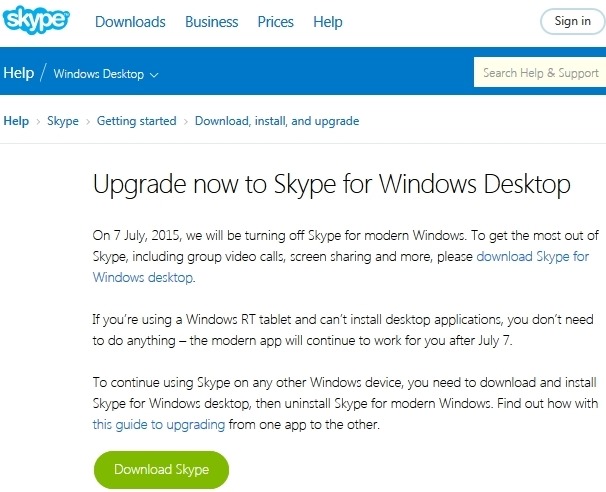
Two separate notices are available – email and web article. Both notices are shown below
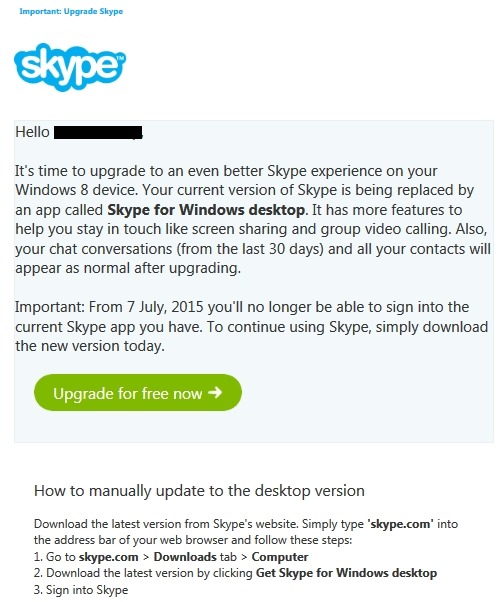
SkypeDesk_EmailNotice_01


SkypeDesk_WebNotice_02


How To:

  • Note: The recommend method to upgrade from Skype for modern Windows to Skype for Windows Desktop Perform the following in the sequence shown below (Download Skype Desktop, remove Skype modern Windows app, install Skype for Windows Desktop)

Download Skype for Windows Desktop


Uninstall the Skype modern Windows app

– Close Skype by pressing Alt+F4 on your keyboard,
or by swiping from the top edge of the screen
– In the Start screen, right click or tap and hold the Skype tile.
The Options menu appears at the bottom of the screen.
– Select Uninstall from the Options menu

Install Skype for Windows Desktop

– Double click the Skype for Windows Desktop *.exe installer file
and follow the instructions to install
– When it’s installed, go to the Apps view
– Slide up from the middle of the Start screen with your finger,
or click the arrow near the lower left corner of the Start screen.
– Navigate and find the Skype for Windows Desktop app icon
(you may have to scroll past the modern apps first)
– Right click or tap and hold the app icon and select Pin to Start
– The app icon will appear at the end of your Start screen
but you can drag and drop it to wherever you like
– Click the Skype for Windows Desktop app icon to load and run Skype and configure to your preferences


Revisions:

June 19, 2015: Original Draft

June 21, 2015:  Updated ‘Comments’ and ‘How To’ section
Summary:

Windows 7 SP1 and Windows 8.1 upgrade options for Windows 10

Comments:

Upgrade options:

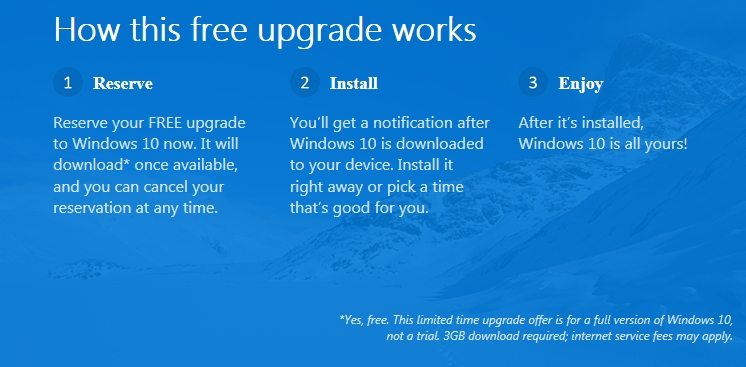
  • Reserve a free upgrade for Windows 7 SP1 and Windows 8.1 Update devices via the ‘Get Windows 10’ upgrade app icon in the lower right side of the Windows Task Bar.
  • Buy a new Windows 8.1 device and upgrade it for free to Windows 10
  • Note: Windows 7 SP1 and Windows 8.1 users have until July 29, 2016 to take advantage of the free Windows 10 Upgrade offer
  •  Get Windows 10 Upgrade app (graphic)

Win10_GetApp_01

Additional Information:

1.  Upgrade to Windows 10 For Free

https://www.microsoft.com/en-us/windows/windows-10-upgrade

2.  Windows 10 Questions and Answers (FAQ’s – Frequently Asked Questions)

https://www.microsoft.com/en-us/windows/windows-10-faq

3. Windows 10 upgrade via Windows Update is expected to be a download about 3 GB in size.

4.  Reserving Windows 10 via the ‘ Get Windows 10’ app will generate a compatibility report for devices and applications indicating if the device and installed applications are compatible with Windows 10

http://windows.microsoft.com/en-us/windows/what-compatiblity-report-means

5. The ‘Get Windows 10 app’ will place an icon in the lower right of the Windows Task Bar

6.  Reserving will place your device in a Microsoft Windows 10 upgrade queue for later download and install.

Revisions:

June 1, 2015: Original Draft and Publish Date

June 9, 2015: Added link for ‘What Compatibility Report Means’

Summary:

Note:  This article is obsolete – Microsoft has removed all software for Windows Essentials and Windows Live Essentials applications from their servers. Downloading the Full or Web Version installer is no longer possible from Microsoft.  The links shown below will no longer function.  Main article left intact solely for archival purposes.

  • Links to download the current version (now called) Windows Essentials 2012 applications/programs
  • Links to download the 2011 version of the Windows Live Essentials 2011 applications/programs
  • Links to download the 2009 version of  the Windows Live Essentials 2009 applications/programs
  • Earlier versions (Windows Live Essentials 2008) are no longer available from Microsoft

Links:

  • Windows Essentials 2012
  • Windows Live Essentials 2011 
  • Windows Live Essentials 2009


Direct download to Microsoft server for the installer executable file

Full Version 2012 installer – English Language Version
http://g.live.com/1rewlive5-all/en/wlsetup-all.exe

Web Version 2012 Installer – English Language Version
http://g.live.com/1rewlive5-web/en/wlsetup-web.exe

Full Version 2011 Installer – English Language Version
http://g.live.com/1rewlive4-all/en/wlsetup-all.exe

Web Version 2011 Installer – English Language Version
http://g.live.com/1rewlive4-web/en/wlsetup-web.exe

Full Version 2009 Installer – English Language Version
http://g.live.com/1rewlive3/en/wlsetup-all.exe
Web Version 2009 Installer – English Language Version
http://g.live.com/1rewlive3/en/wlsetup-web.exe

Note: Direct download links above are for the English language installer. For a different country replace the ‘en’ with the local language code.

Comments:


1. System Requirements (2012 version) -suggested reading
  http://windows.microsoft.com/en-US/windows/Windows-Essentials-2012-system-requirements

2. Release Notes (2012 version)  – suggested reading
  http://windows.microsoft.com/en-us/windows/essentials-2012-release-notes

3. Windows Live Essentials 2009 – Earlier version still available for compatibility and use on no-longer-supported operating systems Windows XP  and Server 2008.  **Not recommended for use on Vista or later Windows operating systems.**

4. Photo Gallery and Movie Maker in Windows Essentials 2012 were rebranded as Windows Photo Gallery and Windows Movie Maker. No name change in branding for Windows Live applications (Mail, Messenger, and Writer)

5. Photo Gallery and Movie Maker in Windows Essentials 2012 install as one combined, single package.

6. Windows Update KB 2741355 is a pre-requisite for DirectX 9 support in Movie Maker on Windows 7 or Windows Server 2008 R2 systems.

7. Windows Live Messenger was deprecated but remains included in the installer since the installer pre-dates the deprecation. Windows Live Messenger is no longer functional and should not be installed. Windows Live Messenger has been replaced by Skype. Skype can be downloaded here – http://www.skype.com/en/download-skype/skype-for-computer/ 

If Messenger is installed then after first use a prompt to upgrade to a ‘new version’ of Messenger will appear. The ‘new version’ is Skype.  Upgrading to Skype via the prompt will uninstall Messenger. Messenger can also be uninstalled manually via the Control Panel (Programs and Features/Windows Essentials 2012 or Programs and Features/Windows Live Essentials)

8. Live Mesh (included in 2011 version) was discontinued and no longer available.  Live Mesh replacement is OneDrive (fka SkyDrive).

Revisions:


May 8, 2015:  Original Draft Date

May 9, 2015:  Comment section updated

May 10, 2015: Original Publish Date

March 27, 2017: Added Note about blog article obsolescence regarding Microsoft removal of software from their servers


Summary:

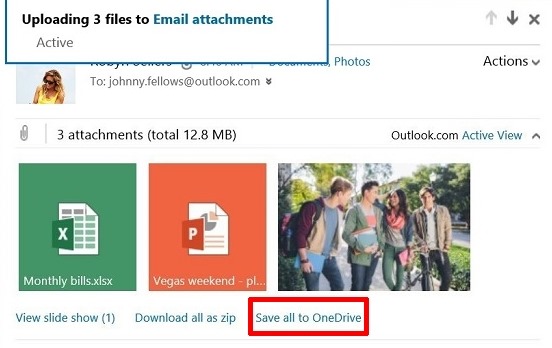
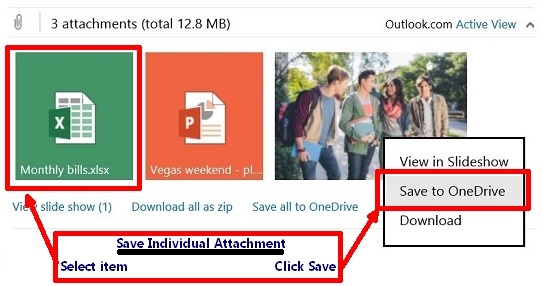
Microsoft permits uploading up to 10 GB size files to OneDrive

Comments:

1. Feature is supported by Windows and Mac desktop apps, all mobile apps, and OneDrive web user interface

2. Supported by Microsoft’s ‘Share from OneDrive’ feature allowing sharing of larger files over e-mail

Additional Information:

1. Outlook.com blog article

http://blogs.office.com/2014/10/08/outlook-com-now-supports-sharing-larger-files-onedrive/

2. Share from One Drive

https://www.youtube.com/watch?v=1XpPJHxum5s

3.  OneDrive Blog – OneDrive Now Supports 10 GB Files

https://blog.onedrive.com/onedrive-now-supports-10-gb-files/


Revisions:

November 2, 2014: Original Draft and Published Date

December 17, 2014: Added Comment Item #3

May 5, 2015: Republish to Windows Unplugged Blog; changed wording in Comments

Summary:

  • Windows Live Mail stores and exports Email and News messages on a pc in a viewable text file format.
  • Email messages use the file type extension ‘eml’; News messages use ‘nws’
  • Both Email and News messages use a hyphenated numerical/hexadecimal format as the filename
    • Two examples for Mail are 00294823-00000147.eml and 26A6701F-00000002.eml
    • Two examples for News are 0FDD08FE-0003DBFF.nws or 63F86350-0003DB89.nws
  • Neither of the above filenames by default show the message’s ‘Subject’ or ‘Title’ field when viewed in Windows Explorer

Recommendation:

  • If using Windows Windows 10, 8.x or Windows 7, the ‘Subject’ field can be enabled in Windows File Explorer (aka Windows Explorer in Windows 7)

Instructions:

  1. To add the ‘Subject’ (or ‘Title’ field via the Windows File Explorer menu)
  2. Open File Explorer  (aka Windows Explorer)
  3. Navigate to the Windows Live Mail email account folder or the location of the exported message folder
  4. The default location for your mail and news folders/subfolders in Windows Live Mail is:
    • C:\Users\<your Windows logon id>\AppData\Local\Microsoft\Windows Live Mail\<your email or newsgroup account name>
  5. The location for exported messages willl be the same folder/subfolder location where the messages were exported (or dragged from Windows Live Mail to another user desired location – e.g. Desktop, user created folder, etc.)
  6. Click on ‘View’ on the Explorer menu or press Alt V
  7. Scroll and select ‘Choose Details’
  8. Scroll and select ‘Subject’ and/or ‘Title’ (see Note below for additional available fields)
  9. Click ‘Ok’

Note:

  • Applicable to all released versions of Windows Live Mail (2012, 2011, 2009, 2008)
  • Other fields in addition to ‘Subject’ are available (e.g. To Address, From Address etc) when configuring the ‘Choose Details’ option in  Windows File Explorer
  • Method is applicable for use when a supported version of Windows Live Mail is installed on Windows 10, 8x, 7, and Vista

Revisions:

Dec 8, 2015:  Original Draft Date

January 6, 2015 : Original Publish Date

March 15, 2015:  Added note on applicability for Windows versions – 10, 8x, 7, and Vista


Summary:    New feature allows importing email from Yahoo and other IMAP accounts using Outlook.com

Comments:

  1.  Import Wizard Based

  2.  Permits keeping old account and email address (No impact on old 3rd party account; account remains intact)

  3. Email confirmation upon completion of Import

  Additional Information:

    Outlook.com Blog article

       – http://blogs.office.com/2014/04/16/outlook-com-customers-can-now-import-their-email-from-yahoo-mail/


Revisions:

April 17, 2014: Original Draft

April 19, 2014: Original Published

May 9th, 2014: Updated (added Comment #3), republished to Windows Unplugged

Summary:  Method to expand message thread conversations in Windows Live Mail

Comments:

  • This article is based on Windows Live Mail 2012


How To:

1. Open Windows Live Mail

2. Click Blue button (upper left), Options, Mail, Read tab
– check ‘Automatically expand grouped messages’

3. Click the View tab (tabs are located on the Ribbon to the right of the Blue button))

Suggested settings on the View tab
Filter Messages = Show all
Conversations = On
Sort Order = Descending
Sort by = Sent
Message List = Automatic
Reading Pane = Right of message list and Show header
Calendar pane = Off (setting is a toggle)
Compact View = Off (setting is a toggle)
Storage Folders = On (setting is a toggle)
Status Bar = On (setting is a toggle)


Revisions:

August 3, 2013: Original Draft

September 7, 2013: Original Publish Date

December 7,  2013: Updated to itemize View tab recommended settings, republished to Windows Unplugged blog