Summary:   Windows 10 Media Creation Tool(MCT) for creating installation media(USB/DVD/ISO) now includes the latest February 2016 bits

Comments:

  • Microsoft updated the Windows 10 Media Creation Tool for Windows 10 Version 1511 with the latest available ‘Build’ bits(February 2016)
  • Previous bits were November 2015 – Windows 10 1511 RTM Build 10.10586.0
  • February bits – Windows 10 Version 1511 – Build 10.10586.122
  • Media Creation Tool link
  • The downloadable Media Creation Tool filename is MediaCreationTool.exe
    • To create USB media – Run the executable file and when prompted choose the USB option
    • To create DVD media – Run the executable file and when prompted choose the ISO option and burn the ISO file to DVD with your preferred software (Note: Windows 10 has a built-in support to create the DVD from the ISO file)
    • Optionally, if desired, the ISO file can also be mounted
  • The created installation media(or mounted ISO file)  can be used to upgrade from Windows 10 Version 1507 or Windows 10 1511(pre-February bits) and also clean install Windows 10 Version 1511.

Revisions:

February 29, 2016:  Initial Draft and Publish Date

March 2, 2016:  Added comment for ISO file mounting

March 15, 2016:  Added comment for include Media Creation Tool filename

March 16, 2016: Rearranged comments for flow

Summary: 

  • How to use the Microsoft DISM Tool to Check, Scan and Restore Windows 10 System Image Health


Comments:

  • DISM(Deployment Image Servicing and Management [DISM.exe]) is a command-line tool that can be used to determine the status[Health] of the Windows operating System Image’s Component Store.  The tool can also be used to Repair a Windows System Image
  • DISM’s command-line tool is run in an elevated command prompt
  • DISM is also available via PowerShell.  (Note: This article will not cover using DISM’ with PowerShell)
  • This article covers three(3) of the command line switches available for use with the DISM command
    • /CheckHealth  – Scans and reports if the System Image is healthy, corrupted, repairable, or non-repairable
        • Informative Only, Doesn’t Fix, Repair or Change
    • /ScanHealth – Scans and reports if corruption exists
        • Informative, Doesn’t Fix, Repair or Change (This scan will take several minutes and will provide a progress bar showing % progress – Do not interrupt)
    • /RestoreHealth – scan the Windows Image for component store corruption and automatically perform repairs
  • Use the DISM tool to determine the health of the Windows System Image if the built-in Windows System File Checker can not repair Windows file corruption.
  • If the DISM tool’s CheckHealth and ScanHealth options report the image (a) corruption **and** (b) is repairable, then use the DISM tools /Restore Health option.


How To: 

  • Using DISM’s /CheckHealth or /ScanHealth  option
  1. Open an Elevated Command Prompt => Press Windows key + X ] then select the ‘Command Prompt (Admin) option
  2. At the command line prompt enter one of the following
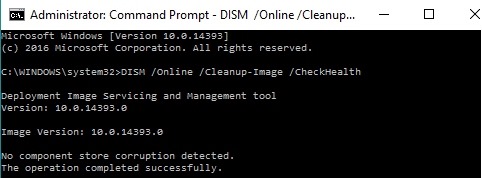
              • DISM /Online /Cleanup-Image /CheckHealth
              • DISM /Online /Cleanup-Image /ScanHealth
        • Note: A healthy system, i.e. no component store corruption will report findings as shown in the two pictures shown below

W10_DISM-CH_01

 W10_DISM-SH_01

  • Using DISM’s Restore Health option (Note: Always perform a /CheckHealth and /ScanHealth prior to attempting a repair of the Windows System Image and ensure that the /CheckHealth option reports the image as repairable)
              • DISM /Online /Cleanup-Image /RestoreHealth


Additional Information:


Revisions:

January 6, 2016: Initial Draft and Publish Date

May 8th, 2016:  Updated and revised Comments section description of the command line switches

August 15, 2016:  Replaced example pictures for better view-ability

September 9, 2016: Added reference to using DISM for Windows Update errors caused by component corruption

Windows 10 November Update Released

Posted: November 13, 2015 in Windows 10
Tags:

Summary:

  • Windows 10 first major operating system update ‘November Update(aka Fall Update) was released on November 12, 2015
  • Version Number and Build number as released – Version 1511 Build 10586.3

Comments:

  • Available via Windows Update or the Media Creation Tool[1,2]
  • Staged Rollout via Windows Update(not all systems will be offered the update at the same time)
  • Most notable feature changes
    • Faster Boot Time
    • Start Menu has improved context menus
    • More tile resizing options
    • Number of tile columns increased from 3 to 4
    • Better integration of Cortana with Edge (Editor Note: Still needs work)
  • New ability to upgrade directly from Windows 7/8.0/8.1 to 1511 bypassing RTM version(1507)
  • Ability to directly clean install and activate Windows 10 using Windows 7/8.0/8.1 Product Keys(i.e. no need to perform an upgrade install followed by, if desired, a clean install)
  • Notes:
    • (a) November Update may not be available through Windows Update if the device was upgraded(from 7/8x to 10) in the last 31 days.  After 31 days have passed the update will become available in Windows Update, the only other option if impacted is to use the Media Creation Tool to perform the 1511 installation.
    • (b) After installing Windows 10 1511, Windows Update’s *Update History* will be reset and start thus any update installed prior to 1511 will no longer be present in *Update History*

Additional Information:

Revisions:

November 13, 2015:  Original Draft and Publish Date

November 22, 2015: [Footnote [1] Media Creation Tool temporarily unavailable due to not retaining user settings

November 24, 2015:  Footnote [2] Media Creation Tool available, fixes settings issue and includes Build 10586.11

November 30, 2015:  Added Notes (a) and (b) in Comments section

Windows 10 Media Creation Tool

Posted: October 30, 2015 in Windows 10
Tags: , ,

Summary:   Microsoft tool to create Windows 10 installation media (DVD or USB) or ISO file

Comments: 

  • The Microsoft Media Creation Tool is free downloadable software(*.exe file) that can be run and used by end-users to:
        • Create Windows 10 installation media on a DVD disc, USB Thumb Drive or an ISO file for mounting
        • Upgrade the PC to Windows 10
  • Where to obtain – https://www.microsoft.com/en-us/software-download/windows10
        • Click on the above link to load the Microsoft web site and the option to download the Media Creation Tool
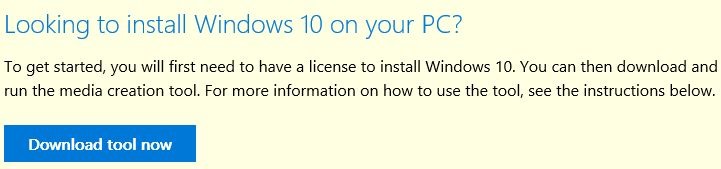
        • Scroll down and click on the box ‘Download tool now’(see below)

W10_MCT_01

        • Save the *.exe file (MediaCreationTool.exe) to your local storage(hard drive, usb thumb drive)
        • Run the exe file to create Windows 10 installation media or upgrade to Windows 10


Additional Information:


  • Also, another good resource on clean installing Windows 10 can be found in Microsoft MVP(Greg Carmack) WIKI


Revisions:

October 29, 2015: Initial Draft and Publish Date

October 31, 2015: Added Additional Information section and links

Summary:   Windows 10 OEM Editions qualifying for downgrades to a prior operating system

Comments:

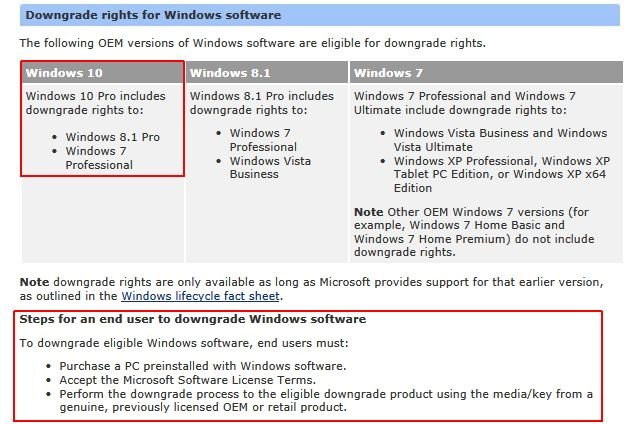
  • Windows 10 Pro OEM Pre-installed is the only OEM edition qualifying for downgrade to a prior operating system
  • Windows 10 Pro OEM qualifies to downgrade to Windows 8.1 Pro and Windows 7 Professional

W108x7_Downgrade_01

  • Note: Windows 10 Retail editions(Home and Pro) ***Do Not***qualify for downgrading to a prior released operating system(e.g. Windows 7 or Windows 8)


Additional Information:


Revisions:

August 30, 2015: Original Draft

September 7, 2015: Original Published Date

Windows 10 Upgrade Paths

Posted: August 15, 2015 in Windows 10
Tags:

Summary:   Upgrade Paths for Windows 7/8 operating systems editions to Windows 10 operating system editions


Comments:

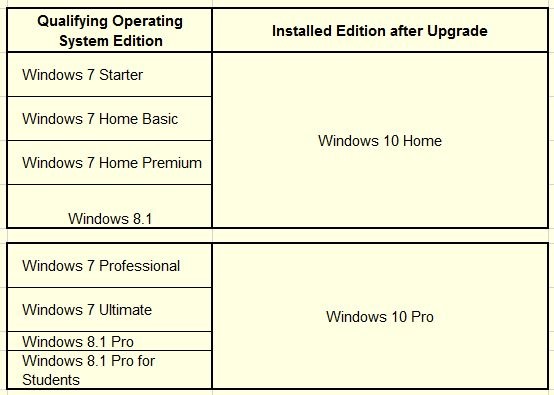
  • The installed Windows 7/8 genuine qualifying operating system edition used to upgrade to Windows 10 determines the installed edition of Windows 10.
  • Upgrade paths are applicable during and after the free Windows 7/8 to Windows 10 upgrade timeframe


Additional Information:

Win10_UpgradePath_01

cf. Table data source => Microsoft Windows 10 Specifications and System Requirements Upgrade Editions


Revisions:

August 15, 2015: Original Draft and Publish Date

August 18, 2015: Table size increased for visibility upon request from viewer(s)

August 1, 2016: Added comment on upgrade path applicability

Windows 10 RTM Released

Posted: July 30, 2015 in Windows 10
Tags:

Summary: 

  • Microsoft officially released the initial(RTM) build and version of Windows 10 on July 29, 2015.


Comments: 

  • Build Number – 1507      Version Number – 10240
  • Windows 10 is a free upgrade for genuine Windows 7 SP1 and Windows 8.1 Update operating systems
  • The free upgrade period starts on July 29, 2015 and ends on July 29, 2016
  • Windows 10 free upgrade is available via Windows Update on Windows 7 SP1 and Windows 8.1 Update devices.
  • Windows 10 installation media(DVD/USB) to upgrade and/or perform a clean installation will be available(for free) from Microsoft at a later date.


Additional Information:

Windows 10 Free Upgrade Available in 190 Countries Today

Windows 10 Specifications & Systems Requirements

Windows 10 Upgrade Frequently Asked Questions


Revisions:

July 29, 2015: Original Draft

July 30, 2015: Original Publish Date

August 2, 2015: Added link for System Requirements and Specifications

August 15, 2015: Added link for FAQ(Frequently Asked Questions)

Summary:

The Skype for modern Windows App(Windows 8 and later) will be replaced by Skype for Windows Desktop

Information:

1. On July 7, 2015 Microsoft will turn off Skype for modern Windows

2. To continue using Skype on Windows 8 and later Windows operating systems it will be necessary to use ‘Skype for Windows Desktop’

Comments:

  • Skype for modern Windows is the app included with Windows 8 and 8.1 operating systems.
  • Skype for Windows Desktop is a stand-alone downloadable and installable program
  • In the past Windows 8.0 and 8.1 allowed both versions (Modern app and Desktop program) to co-exist thus this change effective July 7, 2015 eliminates that possibility and makes Skype for Windows Desktop the sole Skype application for use on Windows 8 and 8.1 (and most likely Windows 10).
  • Skype for Windows Desktop can be downloaded here => Skype for Windows Desktop
  • Skype for modern Windows (the included Windows operating system App) should be uninstalled before installing Skype for Windows Desktop

  Notes:

  • If Skype for Windows Desktop is already installed, it may only be necessary to remove/uninstall the Skype modern Windows app and update Skype (manually using the latest downloadable installer file or updating via the Skype Desktop program ‘Update’ option)
  • When updating Skype for Windows Desktop it may also be preferable to download and use the Skype for Windows Desktop manual installer since the Skype program’s built-in updater has been known (and proven) to lag version(s) behind the latest available download version
  • Do pay attention (when upgrading/installing Skype) to the screen prompts for optional services. Ensure you accept or uncheck any supplemental plug-ins or other offerings (e.g. Skype Click to Call; Making Bing the default browser Search engine, etc.)


Official Notifications:

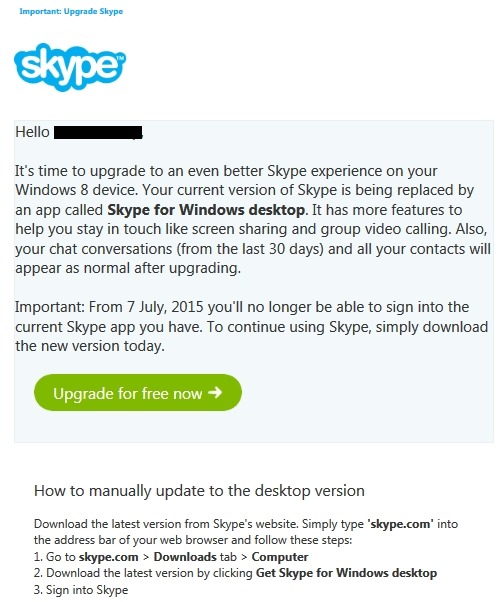
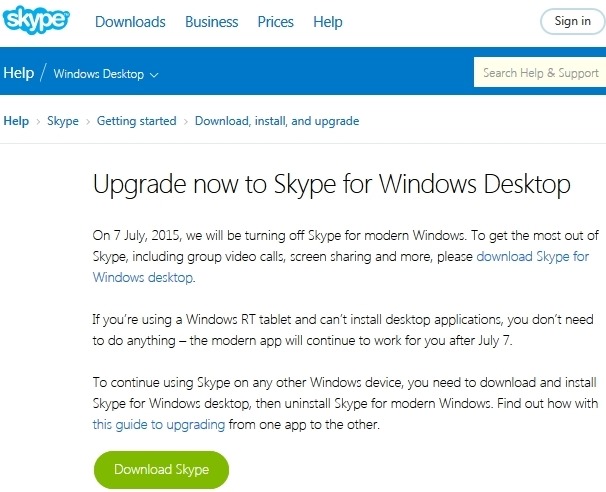
Two separate notices are available – email and web article. Both notices are shown below

SkypeDesk_EmailNotice_01


SkypeDesk_WebNotice_02


How To:

  • Note: The recommend method to upgrade from Skype for modern Windows to Skype for Windows Desktop Perform the following in the sequence shown below (Download Skype Desktop, remove Skype modern Windows app, install Skype for Windows Desktop)

Download Skype for Windows Desktop


Uninstall the Skype modern Windows app

– Close Skype by pressing Alt+F4 on your keyboard,
or by swiping from the top edge of the screen
– In the Start screen, right click or tap and hold the Skype tile.
The Options menu appears at the bottom of the screen.
– Select Uninstall from the Options menu

Install Skype for Windows Desktop

– Double click the Skype for Windows Desktop *.exe installer file
and follow the instructions to install
– When it’s installed, go to the Apps view
– Slide up from the middle of the Start screen with your finger,
or click the arrow near the lower left corner of the Start screen.
– Navigate and find the Skype for Windows Desktop app icon
(you may have to scroll past the modern apps first)
– Right click or tap and hold the app icon and select Pin to Start
– The app icon will appear at the end of your Start screen
but you can drag and drop it to wherever you like
– Click the Skype for Windows Desktop app icon to load and run Skype and configure to your preferences


Revisions:

June 19, 2015: Original Draft

June 21, 2015:  Updated ‘Comments’ and ‘How To’ section